
Imagine this: You’ve laced up your running shoes, ready to hit the pavement, and the only thing missing is a reliable companion to track your progress. Enter your Apple Watch—a powerful tool that does more than just tell time.
If you’re eager to optimize your runs and see tangible results, your Apple Watch is about to become your best friend. By the end of this article, you’ll master the art of tracking runs with precision and ease. You’ll discover how to leverage its features to monitor your heart rate, distance, pace, and more, all at a glance.
Not only will you feel more motivated, but you’ll also gain insights that could transform your fitness journey. Are you ready to unlock the full potential of your Apple Watch and elevate your running experience? Let’s get started!
Credit: medium.com
Setting Up Your Apple Watch
Track your run effortlessly using the Apple Watch. Open the Workout app, select the “Outdoor Run” option, and hit “Start. ” Adjust settings for heart rate and pace alerts to enhance your running experience.
Setting up your Apple Watch is essential for tracking runs effectively. Before heading out, ensure your watch is properly configured. This initial setup will enhance your experience, making tracking accurate and seamless.Initial Configuration
Start by turning on your Apple Watch. Press and hold the side button until the Apple logo appears. Select your language and region. Follow the on-screen instructions for basic setup. This includes setting up Wi-Fi, choosing watch settings, and creating a passcode. A passcode keeps your watch secure. Customize your watch face to display useful data. Options include heart rate, distance, and time. Personalize to fit your running needs.Connecting To Iphone
Pairing your Apple Watch with your iPhone is crucial. Open the Apple Watch app on your iPhone. Tap “Start Pairing” and align your watch with the viewfinder. This syncs your watch and phone. Ensure both devices are updated. Updates improve performance and fix bugs. Enable Bluetooth for seamless connectivity. Connect to Wi-Fi for efficient data syncing. This setup allows your Apple Watch to access GPS, notifications, and music. Your iPhone enhances tracking accuracy.Customizing Workout Preferences
Track your runs on Apple Watch by customizing workout preferences. Adjust settings for distance, pace, and heart rate goals. This ensures a personalized running experience tailored to your fitness level and objectives.
Customizing Workout Preferences on your Apple Watch enhances your running experience. Tailor your settings to suit your fitness goals and needs. This personalization helps you monitor your progress more effectively.Choosing Metrics
Select the metrics you want to see during your run. Open the Workout app on your Apple Watch. Tap the three-dot menu next to your running workout. Choose “Open” or “Distance” to start customizing. Adjust metrics like pace, heart rate, and calories burned.Setting Goals
Define clear goals to stay motivated during your runs. Tap “Add Goal” when you select your running workout. Set goals for distance, time, or calories. This helps you push yourself and track your achievements. Your Apple Watch will notify you as you reach your targets.Starting A Run Workout
Track your run effortlessly using the Apple Watch. Open the Workout app and select “Outdoor Run. ” The watch monitors your pace, distance, and heart rate to keep you informed throughout your workout.
Starting a run workout on your Apple Watch is simple and convenient. It offers a seamless way to track your progress while running. With a few taps, you can start your workout and monitor key metrics. Your Apple Watch will help keep you motivated and focused on your goals.Launching The Workout App
To begin, locate the Workout app on your Apple Watch. Tap the Digital Crown to access the home screen. Scroll through the app grid until you find the green icon labeled “Workout.” Tap it to open the app. This app is your gateway to tracking various types of exercises.Selecting Run Type
Once inside the app, you’ll see a list of workout types. Scroll through the options until you find “Outdoor Run” or “Indoor Run.” These options allow you to track runs both outside and on a treadmill. Tap your preferred run type to select it. You can also customize your run settings before you start.Monitoring Your Run
Apple Watch offers a seamless way to monitor your runs. It provides real-time data and voice feedback to keep you informed during your workout. These features make tracking your progress easy and convenient. Let’s explore how you can monitor your run effectively.
Viewing Real-time Data
Apple Watch displays essential metrics as you run. You can see pace, distance, and heart rate on your wrist. This helps you gauge your performance instantly. Swipe to view different stats without interrupting your run. The watch provides a visual snapshot of your progress. This keeps you motivated and focused.
Using Voice Feedback
Voice feedback gives updates without needing to look at the screen. Your watch can announce your pace, distance, and time. This feature allows you to concentrate on your run. You receive regular updates through headphones or the watch speaker. This makes it easier to track your performance. The spoken cues keep you informed and inspired.
Pausing And Ending Your Run
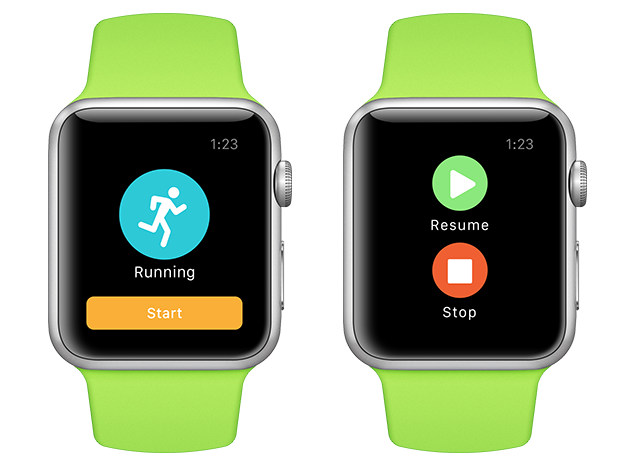
To pause or end your run on Apple Watch, tap the screen and swipe right. Select ‘End’ to finish tracking or ‘Pause’ to temporarily stop. These options help you manage your workout efficiently.
Taking control of your run with your Apple Watch involves more than just starting and stopping the activity. Knowing how to effectively pause and end your run can improve your workout experience and ensure you capture the data you need. Whether a quick break is needed to catch your breath or you’re wrapping up your session, managing your workout with precision is key. Let’s dive into how you can pause and save your run data with ease.Pausing Your Workout
Imagine you’re mid-run, and you need to take a quick pause to tie your shoelaces or grab a sip of water. Pausing your workout on the Apple Watch is straightforward. Simply press the side button and the Digital Crown simultaneously, and your run will pause. This feature is handy for those unexpected moments when you need a breather or want to check out the scenic view around you without affecting your stats. It’s like hitting the pause button on life, just for a moment. Once ready to resume, repeat the same action—pressing both buttons—and you’re back on track. The ease of pausing and resuming ensures you maintain control over your workout flow.Saving Run Data
Ending your run is as important as starting it. To finish, swipe right on your Apple Watch screen and tap “End.” This action not only stops the timer but also prompts your watch to save all the crucial data from your workout. Have you ever wondered how these stats help you improve? With metrics like distance, pace, and calories burned saved in the Activity app, you can track your progress over time. This data serves as a personal coach, nudging you towards your fitness goals. Once saved, your run details are available for review anytime, helping you reflect on your performance. It’s like storing a chapter of your fitness journey, ready to be revisited whenever you need motivation or insights. What strategies do you use to ensure your runs are effective and enjoyable?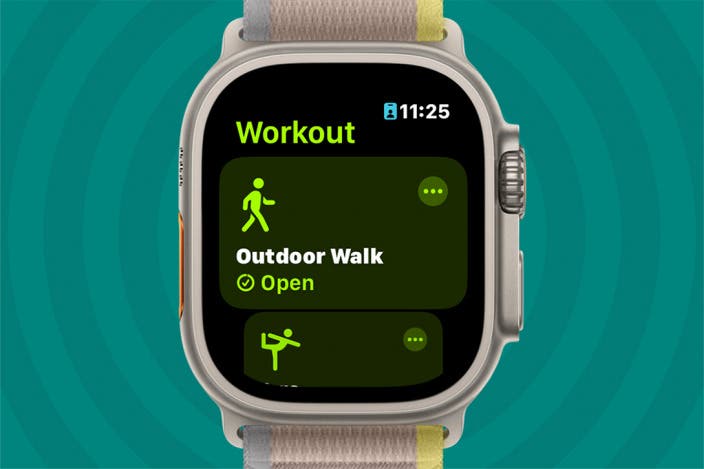
Credit: www.iphonelife.com
Analyzing Post-run Data
Tracking runs on Apple Watch involves utilizing its built-in features to monitor distance, pace, and heart rate. After each run, review the collected data in the Activity app for insights. Analyze metrics to improve performance and set new goals.
Analyzing post-run data on your Apple Watch can transform your running experience. It provides insights that help you improve performance, set realistic goals, and maintain motivation. By diving into the detailed statistics and syncing with the Health app, you can harness the full potential of your Apple Watch and truly understand your progress.Reviewing Statistics
After your run, your Apple Watch provides a comprehensive summary of your workout. You can see metrics like distance, duration, average pace, and calories burned. These statistics are crucial for assessing your performance and planning future training sessions. The heart rate data is particularly insightful. It shows how hard your body worked during the run. By analyzing this, you can adjust your pace or intensity for future runs. Consider keeping track of your elevation gain if your route included hills. This can be a fantastic way to measure the difficulty of your run and see improvements over time.Syncing With Health App
Syncing your run data with the Health app can offer additional benefits. It allows you to have a centralized view of your overall health and fitness. This can be crucial for understanding how your running fits into your broader wellness goals. The Health app can merge your run data with other health metrics. You can see patterns in your sleep, activity levels, and even nutrition. Have you ever thought about how your daily steps or calorie intake affect your running performance? Syncing provides a holistic view that can reveal such connections. By having this data in one place, you can make informed decisions about your training and lifestyle adjustments.Tips For Optimizing Run Tracking
Optimizing run tracking on your Apple Watch can enhance your fitness journey. A few tweaks can make a big difference. Whether aiming for better GPS accuracy or longer battery life, these tips can help. Let’s dive into practical ways to make your run tracking more effective.
Improving Gps Accuracy
GPS accuracy is crucial for precise tracking. Ensure your watch has a clear view of the sky. Tall buildings or thick trees can interfere with signals. Avoid starting your run in such areas. Update your watch software regularly. New updates often improve GPS performance. Turn off Wi-Fi and Bluetooth during runs. This reduces interference. For better results, calibrate your watch. Open the Workout app, and walk or run outside for 20 minutes.
Enhancing Battery Life
Long runs need good battery life. Several strategies can help. Lower the brightness of your screen. Go to Settings and adjust it. Use a simple watch face. Avoid animated or colorful ones. Turn off heart rate monitoring if it’s not needed. This saves battery. Activate Power Saving Mode in the Workout app. It reduces battery usage but may affect some features. Charge your watch fully before long runs. A full battery supports longer tracking.

Credit: www.reddit.com
Troubleshooting Common Issues
Having trouble tracking your run on your Apple Watch? You’re not alone. Many users face common issues that can disrupt their running experience. This section will help you troubleshoot and fix these problems effectively.
Resolving Gps Problems
GPS issues are a frequent complaint among Apple Watch users. Weak GPS signals can cause inaccurate tracking. Start by checking your watch’s settings:
- Ensure location services are enabled for the running app.
- Keep your watch and iPhone updated to the latest software.
- Try restarting your watch to refresh the GPS.
If the problem persists, move to an open area. Tall buildings and trees can block GPS signals. Wearing your watch snugly can also improve signal accuracy.
Fixing Sync Errors
Sync errors between your Apple Watch and iPhone can be frustrating. Begin by checking the Bluetooth connection:
- Make sure Bluetooth is active on both devices.
- Keep your watch and iPhone close together.
- Restart both devices to reset the connection.
If syncing still fails, unpair and then re-pair your devices. This often resolves persistent errors. Remember, having both devices on the same Wi-Fi network can improve syncing efficiency.
Frequently Asked Questions
Does The Apple Watch Automatically Track Running?
Yes, the Apple Watch automatically tracks running using its Workout app. It records distance, time, and calories burned. Users can start a run manually for more detailed metrics. The watch also provides pace alerts and GPS mapping for outdoor runs.
Adjust settings for personalized tracking features.
How Do I Check My Run On My Apple Watch?
Open the Workout app on your Apple Watch. Select “Outdoor Run” or “Indoor Run” to start tracking. After running, check your summary in the Activity app on your iPhone. Access detailed metrics like distance, pace, and heart rate. Ensure your Watch is updated for the best features.
Can I Track My Run On Apple Watch Without An Iphone?
Yes, you can track your run on Apple Watch without an iPhone. Use the built-in GPS and Workout app. Your Apple Watch records distance, pace, and other stats independently. Sync data later to your iPhone for detailed analysis. Enjoy seamless run tracking with Apple Watch.
Can I Track A Run On Apple Fitness?
Yes, you can track a run on Apple Fitness. Use the Workout app on your Apple Watch. It records distance, time, pace, and calories. Sync your data with the Apple Fitness app on your iPhone. This helps you monitor progress and set fitness goals efficiently.
Conclusion
Tracking your run on Apple Watch is simple and effective. The watch offers features that help you monitor progress. You can check distance, time, and heart rate with ease. This makes your running more structured and goal-oriented. The Apple Watch also helps you stay motivated.
Seeing improvements can boost confidence. Regular tracking can improve your fitness journey. It’s a tool that supports healthy habits. So, make the most of your runs. Enjoy every step and stay committed to your fitness goals. Your Apple Watch is there to help every mile of the way.